Troubleshooting
Diagnostic Checklist
Before troubleshooting specific issues, verify these prerequisites are met:
Prerequisites Checklist
- Named Credentials: User has access to required named credentials, all enabled for callouts with
awsacnamespace allowed - Lightning App Access: User has permission to access the Lightning app used for Omni-Channel
- Lightning App Configuration: Amazon Connect for Salesforce utility item added with "Start automatically" enabled
- Administrator Permissions: SCC Administrator permission set AND Contact Center Admin/Supervisor (Partner Telephony) permission set assigned
- Agent Permissions: SCC Agent permission set AND Contact Center Agent (Partner Telephony) permission set assigned
- Chat Permissions (required for all chat features):
- Contact Center Bring Your Own Channel User permission set
- Partner Messaging User license assignment
- Customize Application system permission (added to SCC Agent permission set)
- User Setup in Both Systems: User added to contact center in both Salesforce and Connect
- SSO/SAML Configuration:
- If using Salesforce IdP: Users added to SSO Connected App via profile or permission set
- If using different IdP: Users properly added to the IdP
- Omni-Channel Status: User set to Active status
- Queue Mapping: User staffed on Omni-Queues that map to Connect queues with correct channels enabled
Severity Indicators
Issues are marked with severity levels to help prioritize troubleshooting:
- 🔴 Critical: Blocks functionality, commonly encountered during setup or operation
- 🟡 Important: Impacts specific features or workflows
- 🔵 Informational: Less common issues or specific edge cases
Setup
🔴 Cannot Load SCC-AC Setup Page
Symptom: Error message "Page doesn't exist" appears
Cause: Missing SCC Administrator permission set
Solution:
- Go to Salesforce Setup → Users → Permission Sets
- Assign SCC Administrator permission set to the user installing SCC-AC
- Refresh the page and try again
Related Documentation: Installing SCC-AC in Your Salesforce Organization, Step 2
🔴 "Assets version is not set" Error
Symptom: Step "Enter AWS IAM User Credential" fails with error "Assets version is not set"
Cause: Missing SCC Administrator permission set
Solution:
- Verify SCC Administrator permission set is assigned to your user
- Log out and log back into Salesforce
- Retry the installation step
Related Documentation: Installing SCC-AC in Your Salesforce Organization, Step 2
🔴 "Enter imported certificate label" Failed
Symptom: Certificate label step fails during setup
Cause: Certificate not properly imported or configured
Solution: Verify the following in order:
-
Check certificate import:
- Go to Setup → Certificate and Key Management
- Confirm certificate is present
-
Check S3 bucket:
- Verify certificate exists in S3 bucket:
sccac-{AWS-account-ID}-bucket-{Salesforce-Org-ID}
- Verify certificate exists in S3 bucket:
-
Check AWS Secrets Manager:
- Navigate to AWS Secrets Manager → SCCAC-Secret-orgId
- Confirm
CONNECTED_APP_CONSUMER_SECRETvalue has been updated
Salesforce Sandbox Refresh
🔴 SCCAC Not Working After Sandbox Refresh
Symptom: SCCAC stops functioning after performing a Salesforce sandbox refresh
Cause: Sandbox refresh changes critical org configurations including Organization ID, My Domain URL, and Service Cloud Voice settings
Solution: Uninstall and reinstall SCCAC following this guide: SCC-AC Setup After Sandbox Refresh
Authentication & Agent Status Sync
🔴 Cannot Log Into SCV
Symptom: Error "We can't log you in. Try refreshing your browser, or ask your Salesforce admin for help"
Cause: Incompatible AWS Connect features enabled
Solution:
- In AWS Connect console, navigate to your instance settings
- Disable the multi-IdP feature
- Disable multi-session support in AWS console
- Have the user log out and log back in
Why This Happens: These features require user interaction to select IdP/session, which prevents SCV's automated SSO flow in the hidden frame.
🔴 Agent Status Not Syncing
Starting with v2.9.1, the utility bar displays only the "Amazon Connect for Salesforce" label and does not show agent status text. If you are looking for agent state information, verify your routing status through the Omni-Channel widget.
Cause: Missing Trusted Domains configuration for Clickjack Protection
Solution:
-
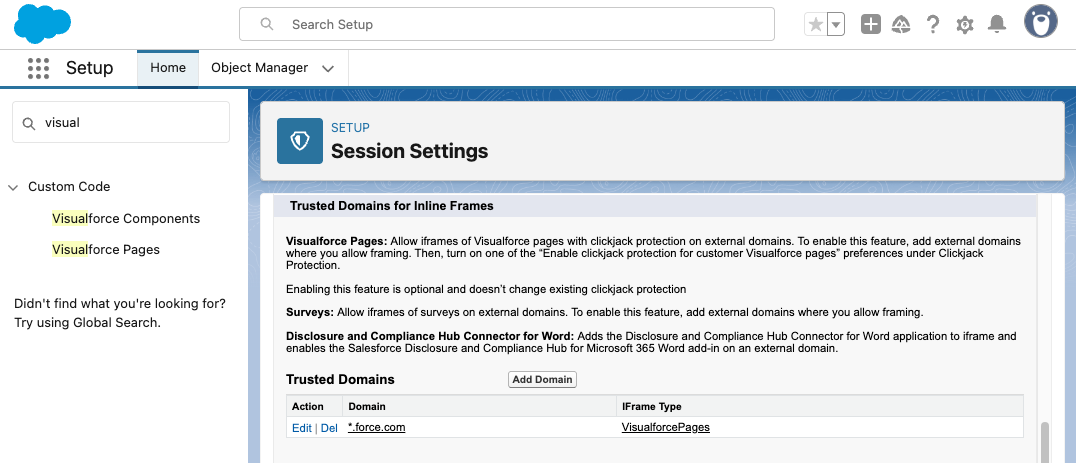
Add Trusted Domain:
- Go to Setup → Session Settings
- Search for "Trusted Domains for Inline Frames"
- Click Add Domain
-
Configure Domain:
- Domain:
*.force.com - IFrame Type: Visualforce pages
- Click Save
- Domain:
-
Verify:
- Confirm
*.force.comappears in the Trusted Domains list
- Confirm
Verification: After adding the trusted domain, confirm your agent routing status is correct by checking the Omni-Channel widget.
Messaging
🟡 Lambda Failures During Inbound Contact Flow
Symptom: Errors in Lambda execution logs during contact routing
Cause: Contact flow not properly configured with channel information
Solution:
- Open the contact flow in Amazon Connect
- Locate the "Set Contact Attributes" block (placeholder)
- Fill in the messaging channel's channel address identifier
- Save AND Publish the contact flow
- Test with a new contact
🟡 Messaging Session Shows Blank Content
Symptom: Conversation transcript not visible in Messaging Session record page
Cause: Missing Enhanced Conversation widget
Solution:
- Go to Setup → App Manager
- Edit your Lightning app
- Add the Enhanced Conversation widget to the Messaging Session record page
- Save and refresh
🟡 Attachment Upload Returns 403 Error
Symptom: Console log shows "403 AccessDeniedException" when calling start-attachment-upload
Cause: Missing S3 CORS configuration
Solution:
-
Enable attachments in Connect:
- Verify attachments feature is enabled in your Connect instance
-
Configure S3 CORS:
- Navigate to the attachments S3 bucket
- Add CORS rules to allow access from Salesforce Visualforce domain
- Include the
awsacnamespace in allowed origins
Example CORS Configuration:
[
  {
    "AllowedHeaders": ["*"],
    "AllowedMethods": ["GET", "PUT", "POST"],
    "AllowedOrigins": ["https://*.force.com"],
    "ExposeHeaders": []
  }
]
🔵 Attachment Upload Issues (General)
Symptom: Attachments not uploading or displaying correctly
Possible Causes and Solutions:
| Problem | Check | Fix |
|---|---|---|
| Not represented as text | Transcript shows embedded content instead of file.force.com URL | Verify file upload handling logic |
| Unsupported file type | User attempting to send .exe, .zip, etc. | Only these file types are supported: .csv, .doc, .docx, .heic, .jfif, .jpeg, .jpg, .mov, .mp4, .pdf, .png, .ppt, .pptx, .rtf, .txt, .wav, .xls, .xlsx |
| File too large | Attachment >4MB (outbound) or >2MB (inbound) | Limits: Outbound (agent→customer): 4MB, Inbound (customer→agent): 2MB |
| Attachments not set up | Missing Connect configuration | Enable attachments in Connect instance and configure S3 CORS |
| Scanning failures | Attachment scanning enabled in Connect | Check that files pass the configured scanning process |
🟡 Transfer Action Not Working
Symptom: Unable to transfer chats or contacts
Cause: Missing quick connects or permissions
Solution:
-
Verify Quick Connects:
- Create quick connects in Amazon Connect instance
- Add quick connects to queues where agents are staffed
-
Verify Permissions: User must have ALL of these:
- ✓ SCC Agent OR SCC Administrator
- ✓ Contact Center Agent (Partner Telephony) OR Contact Center Administrator (Partner Telephony)
- ✓ Partner Messaging User permission set license assignment
- ✓ Contact Center Bring Your Own User permission set
- ✓ Customize Application system permission (if not System Administrator profile)
How to Check: Setup → Users → [Select User] → Permission Set Assignments
🔵 Messaging Components Send as Plain Text
Symptom: Formatted messaging components appear as plain text in Connect
Expected Behavior: This is currently working as designed.
Explanation: SCC-AC does not support messaging components. When sent from Salesforce, they are converted to their text fallback representation for compatibility with Connect.
🔴 "Invalid schema/topic" Error
Symptom: Error message "Invalid schema/topic for topic: /event/awsac__SCC_Event__e"
Cause: SCRT2 Integration User missing SCC Events permission
Solution:
- Go to Setup → Users → Permission Sets
- Locate SCRT2 Integration User
- Add SCC Events read/write permission
- Test the integration
Related Documentation: Grant Required Permissions, Step 1
Cases
🔵 Connect Task Not Created for Case
Symptom: Case assigned to Omni-Queue but no Connect task contact created
Cause: Routing or Service Channel misconfiguration
Solution: Verify in order:
-
Omni-Queue Configuration:
- Go to Setup → Omni-Channel Settings → Queues
- Confirm routing configuration mode is External Routing
-
Service Channel:
- Setup → Service Channels
- Confirm Service Channel exists for Case objects
-
Check AWS Logs:
- Open AWS CloudTrail
- Search for
StartTaskContactrequests - Review response for failure reasons
Success Criteria: Case assignment should trigger a task contact in Connect within a few seconds.
Routing/Omni
🟡 Contact Routes but Agent Work Fails
Symptom:
- Contact routes to agent in Connect successfully
- Agent work creation continually fails in Salesforce
- Contact never presented to agent in Omni-Channel
- Many AgentWork records created with Status=Unavailable
Cause: Missing prerequisites for Omni-Channel functionality
Solution: Verify ALL of the following:
-
Agent Status:
- Agent is "Available" in Omni-Channel
- Not just showing as available but actually can receive work
-
SSO Process:
- Agent can log into Connect through Omni-Channel
- Status syncs correctly between systems
- No authentication errors in browser console
-
Enhanced Omni-Channel:
- Enhanced Omni-Channel is enabled
- Go to Setup → Omni-Channel Settings → Enable Enhanced Omni
Diagnosis Tip: Check browser console for JavaScript errors and review Omni-Channel supervisor logs for routing failures.
Automatic AgentWork Recovery (v2.9.1+)
A known race condition can occur when SCC-AC calls declineAgentWork on a work item that has already been accepted by the agent. In this scenario, the declineAgentWork API returns a 400 error because the work item's status has already transitioned from "Pending" to "Opened", making it ineligible for decline.
Starting with v2.9.1, SCC-AC automatically handles this race condition. When declineAgentWork returns a 400 status, SCC-AC calls closeAgentWork as a fallback. This ensures that stale AgentWork records stuck in "Open" status are automatically resolved without requiring administrator action.
Environments running versions prior to v2.9.1 do not have automatic recovery for this race condition. If you encounter stale AgentWork records in "Open" status on older versions, you must manually close the affected records through the Salesforce API or Omni-Channel Supervisor.
🔵 Agent Continually Set to Offline
Symptom: Agent status automatically changes back to "Offline" immediately after being changed to another status (in CCP, via API, or in agent metrics)
Cause: Presence status missing required channel configuration
Solution:
-
Check Presence Status Channels:
- Setup → Omni-Channel Settings → Presence Statuses
- Select the "Available" presence status
- Verify it includes:
- For chat contacts: Messaging AND Voice channels
- For case contacts: Cases AND Voice channels
-
Update if Necessary:
- Edit the presence status
- Add missing channels
- Save changes
-
Test:
- Have agent set status to Available
- Status should persist without reverting to Offline
🔵 Single Message Shows 100% Capacity
Symptom: Agent receives one messaging session but Omni-Supervisor shows 100% of primary capacity consumed
Cause: Incorrect routing configuration model
Solution:
- Go to Setup → Omni-Channel Settings → Routing Configuration
- Change routing configuration to External Routing model
- Save and test with a new contact
Why This Matters: External Routing model allows Connect to manage capacity instead of Salesforce, enabling more accurate capacity calculations.
On Upgrades
Permission Set Updates After Upgrade
When upgrading to a new version of SCC-AC, new fields and objects may be added. You must manually compare your permission sets against the placeholder permission sets after each upgrade to ensure all required permissions are granted.
Process:
1. Update SCC Administrator Permission Set
Compare permissions between SCC Administrator and SCC Administrator Placeholder:
- Object Settings
- Apex Class Access
- Visualforce Page Access
- Named Credential Access
- External Credential Principal Access
- Custom Metadata Types
How to Compare:
- Setup → Permission Sets
- Open SCC Administrator Placeholder → Export permissions
- Open SCC Administrator → Export permissions
- Use a diff tool to compare
- Add missing permissions to SCC Administrator
2. Update SCC Agent Permission Set
Repeat the same process comparing SCC Agent with SCC Agent Placeholder.
Quick Method:
- Setup → Permission Sets → SCC Administrator Placeholder
- Click "Manage Assignments" → "Edit"
- Note all enabled permissions
- Go to your SCC Administrator permission set
- Enable any missing permissions
Glossary
Common Terms Used in Troubleshooting:
| Term | Definition |
|---|---|
| awsac namespace | The package namespace identifier for SCC-AC components |
| Partner Telephony | Salesforce permission set category for telephony/voice integrations |
| SCRT2 Integration User | System user account for Service Cloud Real-Time integration |
| SSO | Single Sign-On - authentication method allowing one login for multiple systems |
| SAML | Security Assertion Markup Language - protocol used for SSO |
| IdP | Identity Provider - service that authenticates users (e.g., Salesforce, Okta) |
| CCP | Contact Control Panel - Amazon Connect's agent interface |
| Enhanced Omni-Channel | Upgraded Salesforce Omni-Channel with improved features |
| Quick Connect | Amazon Connect feature for transferring contacts to agents/queues/phone numbers |
| Clickjack Protection | Security feature in Salesforce that prevents malicious iframe embedding |
Need More Help?
If your issue isn't covered here:
- Check the FAQ: Frequently Asked Questions
- Review Logs: Logs, Metrics & Alarms
- Check Release Notes: Salesforce Package Release Notes and AWS Resources Release Notes for known issues
- Contact Support: Provide:
- Issue description
- Steps to reproduce
- Screenshots of error messages
- Relevant log entries