Client Credentials Migration
As per Salesforce's guidance, username-password flows will continue to function but are deprecated; Salesforce will no longer provide support or fixes for this flow. Salesforce recommends existing customers migrate to the Client Credentials flow. This page provides step by step guidance to migrate from username-password OAuth to Client Credentials (CC) OAuth.
Migration Steps
Prerequisite: audit SalesforceHost
Client credentials requires the org's My Domain URL as the token endpoint. Salesforce does not support login.salesforce.com or test.salesforce.com for this grant. Confirm the stack's SalesforceHost parameter before migrating:
- Production / Developer Edition:
https://<mydomain>.my.salesforce.com - Sandbox:
https://<mydomain>--<sandboxname>.sandbox.my.salesforce.com
Find the value at Setup > Quick Find > My Domain.
NOTE: We recommend testing these changes in a pre-production environment first. If you are an Amazon Connect Global Resiliency customer, all regions have to be updated and flipped.
Update Lambda
Please follow these instructions for upgrading the Salesforce lambdas.
Release v5.28 introduces a new parameter to the stack called SalesforceAuthMode.
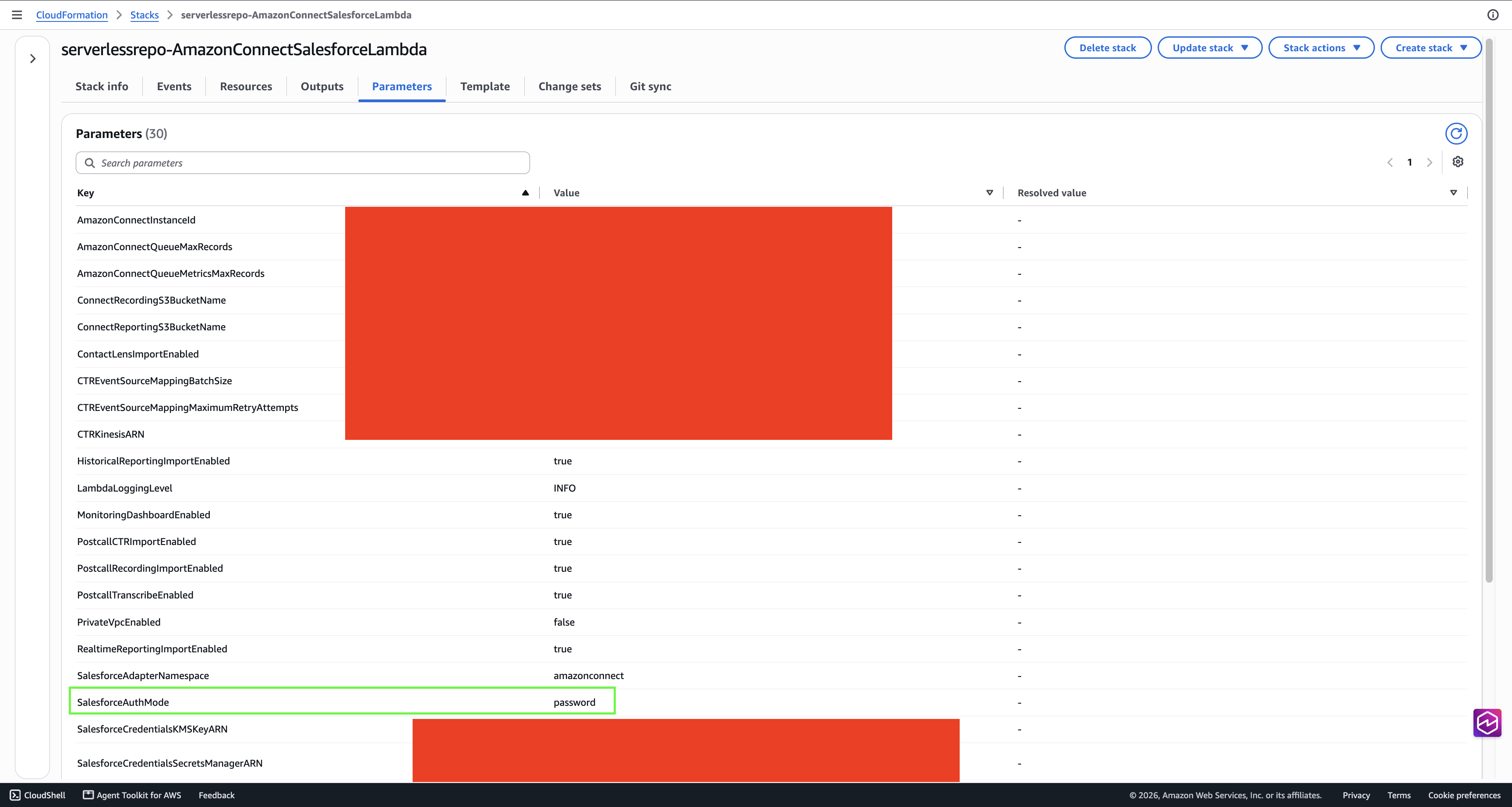
The default value for the new parameter is password. DO NOT change the parameter to client_credentials yet. The Salesforce org must be configured for client credentials flow before the switch happens AWS-side.
Salesforce org configuration
Client credentials is a manual admin step in both unmanaged and managed installs:
App refers to the connected app you created in this step during setup.
Go to App Manager > App (generally Amazon Connect Integration) > Edit and check Enable Client Credentials Flow and Save.
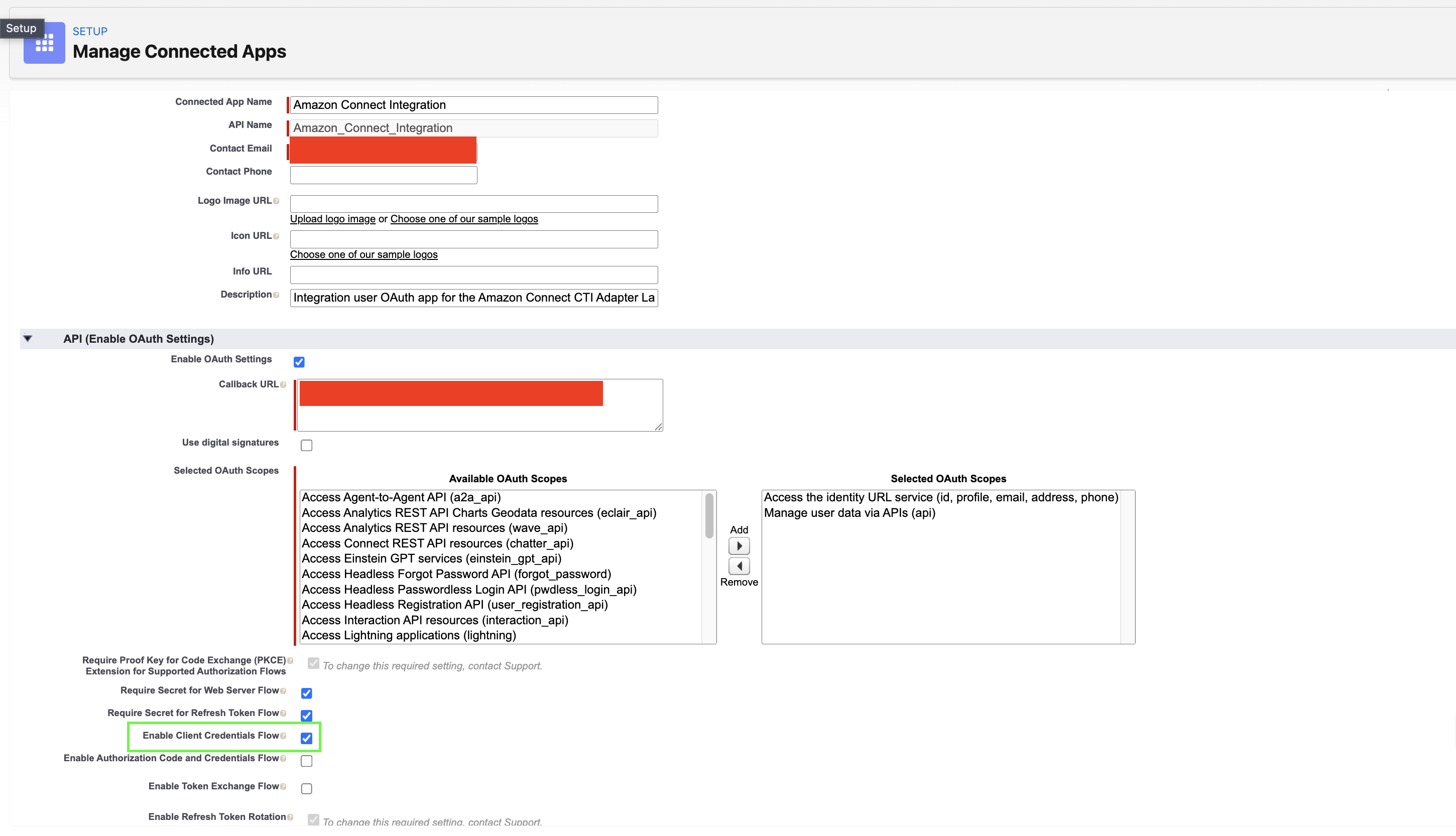
Go to App > Manage > Edit Policies > Client Credentials Flow > Run As user.
Set Run As to the existing dedicated API user — the same apiuser already named by SalesforceUsername — and assign it API Enabled plus AC_Administrator (Setup > Users > apiuser > Permission Set Assignments).
If the app has Admin approved users are pre-authorized, attach the Run As user's profile or permission set to the app, or the token request fails with
invalid_app_access: user is not admin approved to access this app.Record ownership. In
client_credentialsmode the token is issued for the Run As user, and all DML runs as that user — where password mode runs as SalesforceUsername.
If you followed step 4 and set Run As to the same apiuser named by SalesforceUsername, nothing changes. Ownership, CreatedById and sharing behave exactly as before, because the acting identity is identical in both modes.
If you choose a different Run As user, review the following before cutting over:
- OwnerId on new records. Every record the Lambdas create is owned by the Run As user. This covers
AC_ContactTraceRecord__c,AC_ContactChannelAnalytics__candAC_ContactChannels__c, and also any object your contact flows create through sfInvokeAPI — commonly Cases and Tasks. - Owner-based sharing rules. Rules of the form "records owned by X are shared with Y" will no longer match. Records can become invisible to agents who could previously see them.
- Role hierarchy visibility. Record access rolls up through the owner's role. A Run As user in a different role changes who can see the records.
- CreatedById / LastModifiedById assumptions. Reports, list view filters, assignment rules, flows and Apex that key on these fields will see the new user.
- Field-level security. Field access is evaluated against the Run As user. If that user has narrower FLS than SalesforceUsername did, upserts silently drop the fields it cannot write — no error is raised. This is the same failure mode as a namespace mismatch; see Troubleshooting.
Reusing the existing apiuser avoids all of the above and needs no second license, which is why step 4 recommends it.
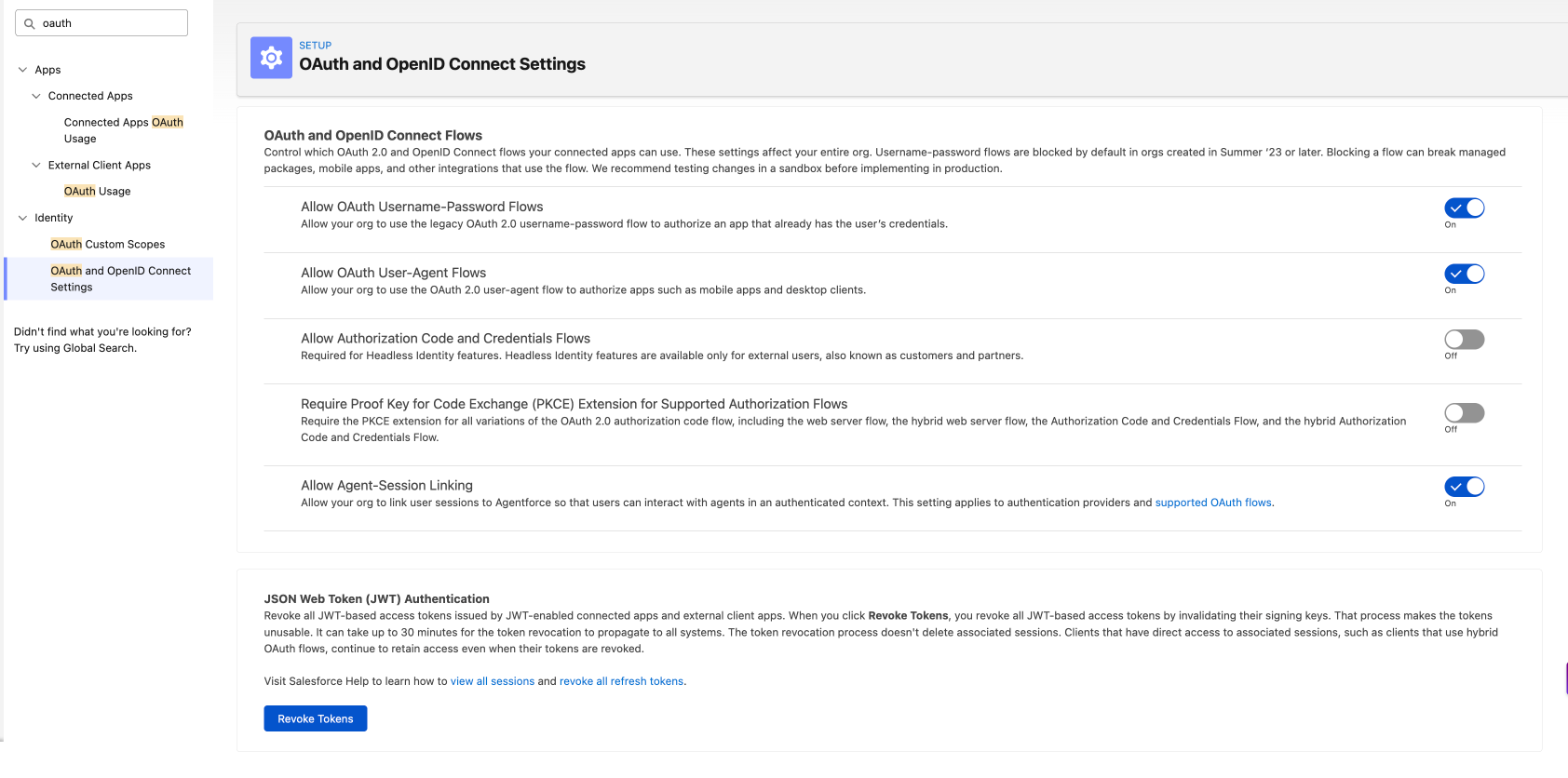
- DO NOT touch the org-level Allow Authorization Code and Credentials Flows toggle — that is Headless Identity for external users, not this flow. Client credentials is enabled per-app. Leave this page unchanged. It is shown only so you can confirm you are looking at the correct settings page; the org-level toggles here are not part of this migration.
Flip the SalesforceAuthMode parameter
- Navigate to the serverlessrepo-AmazonConnectSalesforceLambda stack in CloudFormation.
- Select the Update stack dropdown and select Create a change set.

- Keep the default options for Step 1, Standard Change Set and Use existing template, then select Next.
- Scroll down to the SalesforceAuthMode parameter and select
client_credentialsin the dropdown:

- Keep everything else unchanged and click Next.
- Click the acknowledge section at the bottom and click Next.
- Review the change set and make sure that the only value changed is the SalesforceAuthMode parameter, then select Create change set.
Note — The change set is a resource-level review. It confirms which resources change and whether any are replaced. Do not rely on it to validate parameter values — a clean change set does not mean your parameters are correct.
- Wait for the change set to be created, then click Execute change set.
- Keep the Rollback plan on the defaulted selections and click Execute change set again.
- Wait for the update to complete.
Testing
Step 1: Force a fresh token before testing (required, not optional)
After flipping the parameter, the Lambdas continue using the access token already cached in the credentials secret. That token was issued under password mode and is still valid, so every test below will pass regardless of whether client_credentials is configured correctly — and the misconfiguration would surface hours later when the token lapses.
In Secrets Manager, edit the credentials secret that was created in this step and set the AuthToken value to an empty string. Leave every other key unchanged. The next invocation requests a new token using the configured grant and writes it back automatically.
Test this in a pre-production environment. If client_credentials is misconfigured the integration will fail immediately — which is the purpose of the step.
Step 2: Verify with a write, not a read
Run the three sample test events documented under Test the core functionality against the sfInvokeAPI function, in order:
- phoneLookup — proves authentication
- create — proves write permission; returns the new Case Id
- update — returns HTTP 204 No Content
Step 3: Confirm in Salesforce
Search Cases for "Amazon Connect Case". You should find one case opened by the API user with status Closed. Under client_credentials the creating user is the Run As user, so this also confirms the record-ownership shift.
Step 4: Confirm which grant actually ran
Two independent signals, both available because step 1 forced a real token request:
Setup > Login History, filtered to the API user: Login URL is your My Domain host. If it shows login.salesforce.com, the stack is still running password mode.
CloudWatch logs for sfRealTimeQueueMetrics:
Retrieving new Salesforce OAuth token (auth mode: client_credentials)
Login History is the more reliable of the two because it is recorded by Salesforce and cannot be produced by a cached token.
Do NOT treat the CloudWatch line above as proof of success. It is emitted whenever the parameter is set to
client_credentials, even when the request used a token issued under password mode.
Rolling back to password mode is a single parameter change and requires no secret or org changes. See Appendix G: Rollback to Username-Password.
Warning: API user lockout risk during auth troubleshooting —
sfRealTimeQueueMetricsruns four times per minute. If authentication fails at any point during this migration — including after a failed client credentials configuration or during rollback — it will exhaust the org's login attempt limit within minutes. Each failed attempt resets the lockout window, so the lockout does not self-clear while the schedule is running.Before troubleshooting any authentication error, disable the
sfRealTimeQueueMetricsCronEventBridge rule first. Re-enable it when done. Note that each sfInvokeAPI invocation also consumes two login attempts, because the client retries once on a 401.
Optional: hardening after migration
Once client_credentials has run cleanly in production and you have decided not to roll back, you may disable the org-level Allow OAuth Username-Password Flows setting (Setup > Identity > OAuth and OpenID Connect Settings).
This does not affect client_credentials. That flow uses a different grant and never consults this setting, which is why Salesforce recommends client_credentials for orgs created Summer '23 or later, where the username-password flow is already blocked by default.
Before disabling it, note two things:
- This is an org-wide setting. It disables the password grant for every integration in the org, not just the CTI Adapter. Inventory your other connected apps and confirm none of them rely on the username-password flow. Login History will not reliably tell you this — both grants are recorded as "Remote Access 2.0" — so check with the owners of any other integrations.
- It removes your ability to roll back the CTI Adapter to password mode. See Appendix G: Rollback to Username-Password.
This step is optional. Nothing about the CTI Adapter requires it, and leaving the setting enabled has no effect on client_credentials.
Troubleshooting
| Symptom | Possible Solutions |
|---|---|
invalid_grant: no client credentials user enabled | No Run As user configured. Set it under App > Manage > Edit Policies > Client Credentials Flow. |
invalid_grant: ... client credentials flow not enabled | Enable Client Credentials Flow is unchecked on the connected app. |
invalid_client_id | The ConsumerKey in the credentials secret does not match a valid connected app. |
invalid_client | The ConsumerSecret in the credentials secret is incorrect. |
invalid_app_access: user is not admin approved to access this app | The app restricts access. Attach the Run As user's profile or permission set to the app, and add AC_Administrator under Manage Permission Sets. |
HTTP 400 FIELD_CUSTOM_VALIDATION_EXCEPTION — "Insufficient Privileges You do not have the level of access necessary to perform the operation you requested." | The Run As user is missing AC_Administrator (amazonconnect__AC_Administrator for a managed install). Note that reads and deletes still succeed, so partial function is not evidence the permissions are correct. |
Tests pass but you cannot tell whether client_credentials is actually in use | A valid token issued under password mode is still cached. Follow Testing step 1 to clear AuthToken in the credentials secret and re-test. |
| Upserts appear to succeed but no record is written | SalesforceAdapterNamespace does not match the installed package. Set it to amazonconnect for a managed install. This fails silently, with no error raised. |
| The API user becomes locked out while troubleshooting (applies to password mode — relevant while verifying the stack before you flip the parameter) | sfRealTimeQueueMetrics runs four times per minute and will exhaust the org's login attempt limit within a few minutes of any credential error. Each failed attempt resets the lockout window, so the lockout does not expire on its own while the schedule is running. Disable the sfRealTimeQueueMetricsCron EventBridge rule before troubleshooting password-mode auth, then re-enable it afterwards. Note that each sfInvokeAPI invocation consumes two login attempts, because the client retries once on a 401. |
Note — These are possible solutions. If these errors still exist, please contact Salesforce Support.